
ACDSee Photo Studio 11 It is a powerful image viewing tool and digital image processing software. It can efficiently acquire images from digital cameras and scanners, supports more than dozens of common multimedia formats, and can independently complete multiple tasks such as image management, image editing, digital photography, and digital asset management.

##Digital Asset Management and Productivity
Universal Applications
Photo Studio for Mac 11 is a universal app that runs natively on Macs with Apple Silicon chips like the M1 for broad performance improvements.
Slideshow view
Use Slideshow view in Organize mode to preview multiple images in a slideshow as well as full-size views of individual photos.
Navigation Window
Use the Navigator window to zoom in on an image and easily pan it for close viewing and editing.
Zoom lock button
With the click of a button, you can lock the zoom level while browsing images in View mode.
Improved color picker display
Get the exact RGB color value of a pixel when using the color picker tool.
macOS 12 Monterey "Live Text" compatibility
ACDSee Photo Studio for Mac 8 makes it easy to take advantage of the new macOS 12 Monterey Live Text feature and integrate it into your ACDSee workflow.
Improved catalog folders
The Catalog Folder tool has been refined to significantly speed up and increase the efficiency of cataloging projects.
Improved graphical user interface
The latest version of Photo Studio for Mac integrates easily into the macOS environment for better visual consistency and usability.
Easy Undo/Redo
Find Undo and Redo buttons at the top of the pane to speed up the process of perfecting your edits in Develop Mode.
Keyword Management
ACDSee comes preloaded with a variety of useful keyword sets. You can also create sets of related categories and switch between them. Save countless hours of manual entry by importing established keyword lists. Export keyword lists and share them with other users.
File Viewer
Instantly launch any supported file type, including videos, PDFs, and documents, directly in Quick Look from ACDSee.
Saved Searches
Easily access all photos that match your specified criteria using powerful saved searches, which you can access at any time with a single click in Manage mode.
Copy and paste metadata
Save hours by copying and pasting metadata from one file to multiple files.
Management Model
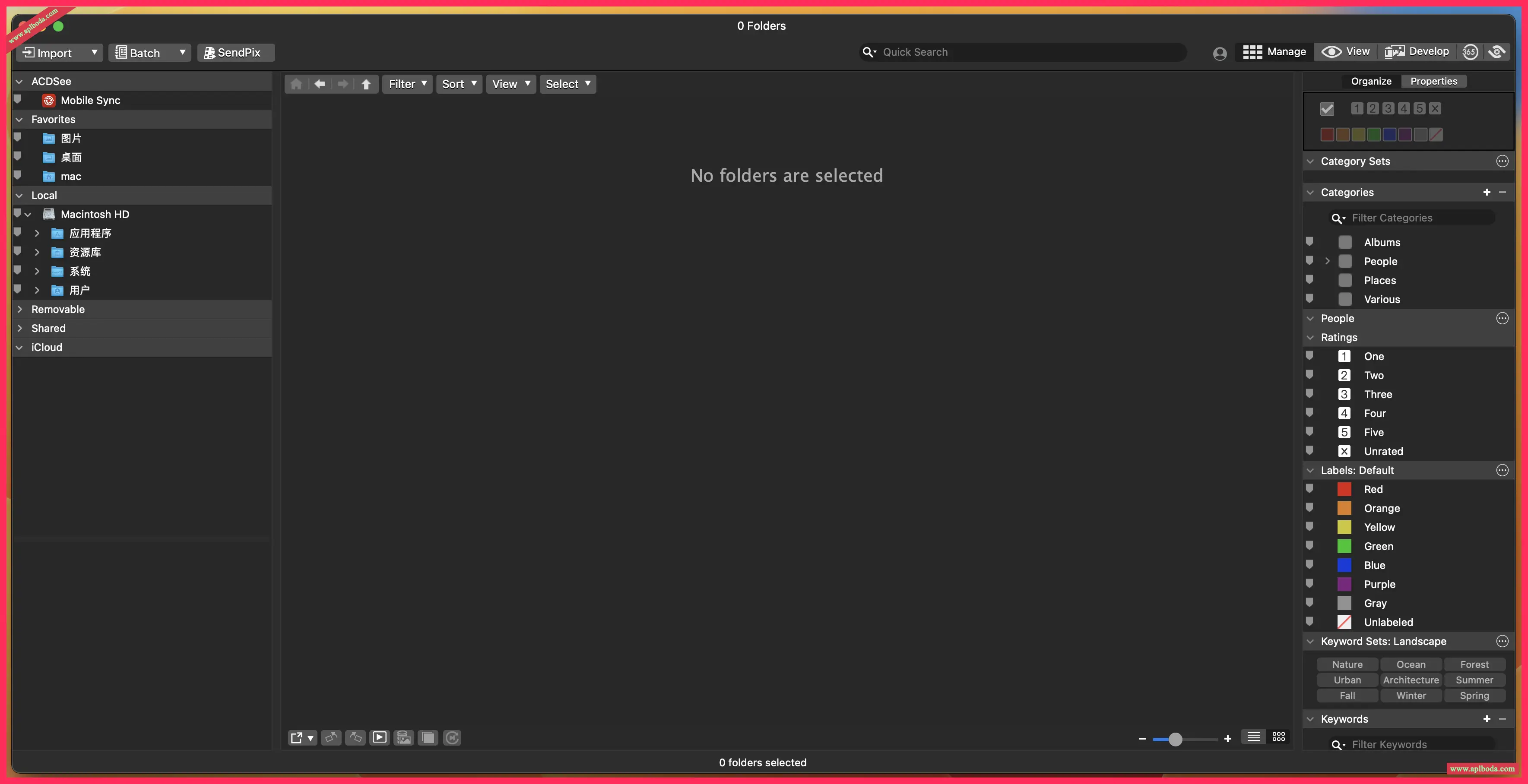
Find, move, and sort your files and access organizational tools in Manage mode.
View Mode
Use View mode to display images at full resolution, one at a time. You can view image properties, display image areas at different magnifications, or rotate an image.
Development Mode
Fine-tune, adjust details, and repair image geometry using the professional processing tools in Develop mode.
Duplicate Finder
Find duplicates in various folders and locations. Rename or delete detected duplicates to control your file collection.
Customizable keyboard shortcuts
Quickly complete your management processes using the customizable hotkeys available in Manage and View modes.
Batch processing tools
Efficiently modify multiple files at once and automate tasks you perform frequently, such as renaming files with your last name or converting your images to another file format.
full screen
View your images full screen in View and Develop modes.
Compare images
View up to four images side by side to help you highlight similarities and differences in your selected images.
Resize
You can resize a group of images by specifying dimensions in pixels, by specifying percentages of the original dimensions, or by constraining them to physical print dimensions.
compatibility
Enjoy comprehensive support for all the most popular image formats. ACDSee also offers comprehensive color management.
Print Settings
Customize print sizes, create contact sheets, export images to PDF, or create print presets for easy printing within ACDSee.
External editor support
You can configure ACDSee Photo Studio to work with a variety of image editors. Assign a default image editor and open images from external editing applications within ACDSee.
## Photo Editing Tool
Color LUT
Use Color LUTs to apply a variety of unique effects with just one click. Choose from 8 default color LUTs or import new ones for unlimited potential.
Color Wheel
Focus on the exact colors of your entire image and work with greater precision. Accurately brighten gray skies and dull reflections.
Color Equalizer Contrast/Balance
Further manipulate the contrast in your image with the new Contrast and Contrast Balance adjustments in the Color Equalizer tool.
Dehaze
Restores contrast, detail, and lost color to an image. This tool is particularly useful for images captured through haze.
Skin Adjustment
Even out tones and restore radiance to your subjects, as well as brighten and smooth them, using the Skin Tune tool.
Clone Repair Tool
Use the Clone Brush to remove image imperfections for strong, simple textures or unified colors.
Repair Tools
Use the Healing Brush to remove image imperfections on complex textures like skin or fur.
Smart Brush
Smart Brush helps you select precise areas for editing by selecting pixels based on color, brightness, or a combination of both. It works with Magic Mouse and trackpad, allowing you to easily adjust the tip width and feathering.
Developing the Brush Tool
Brush on exposure, saturation, fill light, contrast, and clarity adjustments on parts of your image without affecting others.
Developing Gradient Tools
Gradually apply exposure, saturation, fill light, contrast, and clarity adjustments using linear or radial gradients.
Selective Adjustment Presets
Save precise adjustments made with the brush and gradient tools as presets for easy re-application to other images.
Red Eye Tool
Automatically remove red eyes from faces in photos.
Chromatic Aberration
Use the Chromatic Aberration tool to fix color fringing at the boundaries of high-contrast areas.
Soft Focus
Use the Soft Focus tool to reduce harsh lines and enhance colors, creating the effect of a diffused lens filter.
Add watermark
Claim your work as your own with adaptive watermarks. Save time by batch applying watermarks to multiple photos with a single click.
Add a border
Add frames to your favorite photos. Customize color, texture, and thickness to suit your shots.
Adding and removing vignettes
Add a vignette and adjust its size, color, and opacity to perfectly complement the mood of your photo. Or, you can remove unwanted vignettes created by your camera lens.
Rotate and straighten
Rotate the image at a preset angle or use the Straighten tool to adjust the horizontal angle of the image. You can save your settings as a preset for future use.
Perspective Correction
Easily adjust the perspective of your photos to make large or distant objects appear the correct size.
Distortion Correction
Correct barrel, pincushion, and fisheye distortion in photos.
Highlight Recovery
Use the Highlight Recovery tool to restore detail in overexposed areas of your image.
Fill light
Use the Fill Light tool to brighten the darkest areas of your image.
contrast
Use the Contrast tool to increase or decrease the difference between highlights and shadows to enhance or remove detail in an image.
Tone Curve
Use the Curves tool to change the tonal range of an image. Select an RGB color channel to adjust the entire range of the image, or select a specific color. You can also delete points on the tonal curve, giving you complete control.
White Balance
Instantly add warmth or coolness to your photos, or use the White Balance tool to remove unwanted tones from your images.
Color Balance
Use the color equalizer (hue, saturation, and brightness) tools to adjust the overall color or each color in an image independently. Advanced tools can subtly fine-tune and enhance color, or completely change individual colors in an image.
Black and white
In black and white mode, increase or decrease the contrast of each color and specify the target brightness range for the contrast adjustment.
Sharpen
Sharpen your photos by enhancing medium and high contrast edges.
Noise reduction
Reduce noise in your photos while preserving the details you want to keep.
Version update content:
• Fixed a performance issue when browsing cataloged items on a shared volume through the Organize pane.
Known Issues
• Assigning metadata via the Batch Tool will fail if there has been a previous Move or Copy operation.
• When the application is moved to another monitor and full screen is enabled, the image does not fit the display.
• If the item is not cataloged, the file list items are sorted by name, and the sorting method is based on EXIF or IPTC metadata.
• The Find Duplicates tool doesn't work with iCloud Drive.
• Move to Trash does not apply to images stored on the camera.
• Batch Copy and Batch Move are not available for images stored on the camera.
• PTP (Picture Transfer Protocol) is not supported.
• Cannot read any ACDSee metadata embedded in BMP, CUR, DDS, EXR, GIF, HDR, ICO, JP2, MEF, PBM, PSD or TGA.
• When the "Place in subfolder" option is enabled, the bulk copy operation hangs, a "Date" tag is added to the name, and the date format includes a slash character ("/").
◦ Workaround: In System Preferences > Language & Region > Advanced… > Date, remove the "/" from the desired format.
• Import ignores the video portion of a Live Photo. Workaround: Use ACDSee Mobile Sync.
• ACDSee does not support multiple clients connecting to the same database. If you try to connect to a database that is already open in another instance of ACDSee, ACDSee will become unresponsive.
• The Watermark tool Center button would not center the watermark on all images in the batch if the images were different sizes.
• If the image basket contains many items, startup time may be affected.
• Keyboard shortcuts assigned to commands that can be renamed (such as categories, batch presets, external editors) will need to be reassigned if the command is renamed.
• Writing spotlight comments failed with the error "source file not found".
• PSD files cannot be placed on a map.
• If you adjust the exposure or white balance and the image is RAW, the clone/healing effect is temporarily removed from view.
• If the exposure of the clone/healing source point is adjusted by a brush or gradient, the exposure of the destination point will also be adjusted.
• Dragging a keyword tag from the Properties pane Keyword input field to the search bar does not return matches if the keyword is hierarchical.
◦ Workaround: Drag the keyword from the keyword list.
• If the LUT size is greater than 128, the color LUT cannot be applied.
notes
• It is strongly recommended to embed ACDSee metadata before importing or restoring a database from a previous version of ACDSee.
• When importing a database from a previous version, make sure to close the previous version of the application.
• Importing a previous version of a database may cause the Modified Date timestamp to be updated, but will not modify the actual contents of the database.
• The application requires permission before directly accessing files in certain folders and external volumes. Allow ACDSee to access the files when prompted, or as follows: Go to System Preferences > Security & Privacy > Privacy > Files & Folders, find ACDSee, and check the applicable boxes.
• If the file type is HEIC, ACDSee writes the metadata to a sidecar file in a hidden subfolder relative to the original file.
• When you run it for the first time, the Import Database tool offers to import the default database from the previous version. If you want to import a custom database created in a previous version, close the Import Database dialog box and use the Restore Database tool (on the Tools menu) to select the database you want to restore.

 English
  简体中文
简体中文  香港中文
香港中文  繁體中文
繁體中文  Deutsch